
Installation
Installing the plugin can’t be more straightforward. After you purchase and download the plugin, you can simply sign into your WordPress site as an admin and navigate to Plugins > Add New. To install the plugin, click Upload Plugin to start the process. After installation, you will be directed to the License Activation page to enter your license key and activate the plugin.
Setup
The plugin has four report views (for Course, User, Tin Can and xAPI Quiz Report) and a Settings tab.
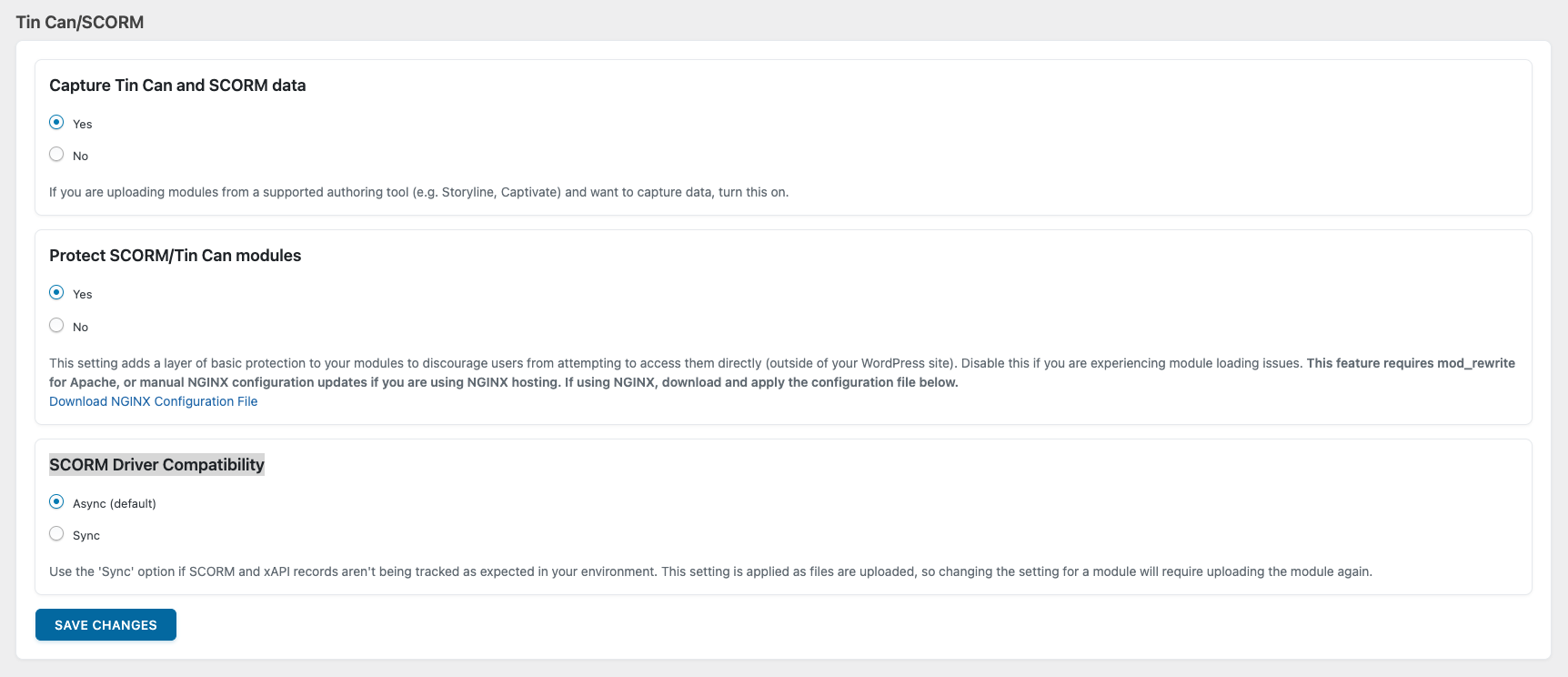
There are three optional controls on the Settings page under the heading Tin Can/SCORM:
- Capture Tin Can and SCORM data: Keep the default setting Yes unless you are certain you won’t incorporate H5P, Storyline, Captivate, or iSpring content in any of your courses. If you select No (to not capture Tin Can data), the Tin Can Report tab will be removed and so will the Tin Can activity menu on the User Report. In addition, no Tin Can data will be reported on the Dashboard or Course Report. All other LearnDash reporting will still be available and functioning as expected.
- Protect SCORM/Tin Can modules: This option can prevent modules from being viewed by users who are not signed to your site. You can set protection at a global level (as shown above) and also override the global setting at a lesson or topic level.
- SCORM Driver Compatibility: Depending on the authoring tool used, you may be required to change the default “Async” SCORM Driver compatibility to “Sync”. For most scenarios, this option will stay on the default “Async” setting.
You can also set global options for the Mark Complete button behaviour. The options include:
- Always Enabled
- Disabled until complete
- Hidden until complete
- Hidden and autocomplete
- Hidden and autoadvance
The Reset Tin Can Data button allows you to clear all existing Tin Can statements in the Tin Can Report. This feature would be helpful if you need to reset test data. Note all historical data will be removed; this action cannot be undone.
i’m getting an error when using H5P
Unable to save result data
Message :error
code:403
i have to turn of the uncannyowl reporting plugin to stop the error from popping up.
Hi Shukri,
Typically we would see something like this when there are .htaccess or other sitewide permission restrictions. Tin Canny cannot capture data if the endpoint is in any way blocked. Unexpected permalink settings or other access restrictions could also cause problems.
If you have ruled obvious access issues out, you should definitely send us a support ticket so that we can take a closer look, or send an email to support@uncannyowl.com.
it was the iThemes Security plugin. i turned it off, but i dont know the exact setting i need to turn off or on for it to work.
I found that ithemes security setting – uncheck “Disable PHP in Plugins” under PHP Execution under System Tweaks.
I am developing a Learn Dash – website to a subdomain I want to add the Tin Canny LearnDash Reporting Plugin. If I purchased the plugin now when I move to the final site with the All-in-One WP Migration plugin what would happen with the activation ? Would I have to buy another license ?
When you move the site, you can simply deactivate your license on that site and reactivate it on the new domain. You can do this from your control panel at https://stg-uncannyowl-rpd-3em9.ue1.rapydapps.cloud/my-account/licenses/.